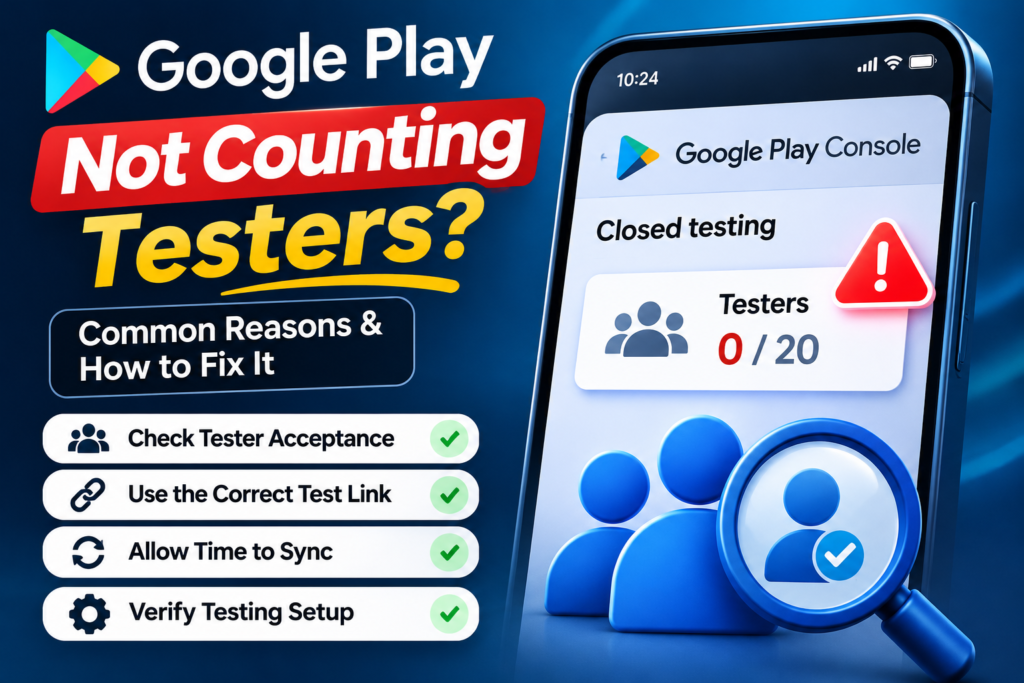
Are you experiencing the problem of Google Play Not Counting Testers while completing your Android application’s closed testing requirement? Many developers invite testers, share their testing links and wait for progress to update, but the Google Play Console still shows fewer testers than expected. This situation can become frustrating, especially when you are trying to complete the required 14-day testing period and apply for production access.
Google Play Not Counting Testers can happen for several reasons, including incomplete tester opt-in, incorrect Google accounts, unpublished testing releases, wrong testing tracks and testers leaving the programme before completing the required period.
Understanding why Google Play Not Counting Testers occurs is important because simply adding email addresses to your tester list does not mean those users have successfully joined your closed test.
For eligible personal developer accounts created after 13 November 2023, Google requires at least 12 testers to remain opted in continuously for 14 days before applying for production access.
In this complete guide, we explain the most common reasons for Google Play Not Counting Testers and provide practical solutions to help developers troubleshoot their closed testing process.
1. Why Is Google Play Not Counting Testers?
The problem of Google Play Not Counting Testers usually occurs when developers misunderstand the difference between inviting testers and successfully enrolling them in a closed testing programme.
Google Play Console allows developers to create tester lists using individual email addresses or Google Groups. However, adding these users does not automatically make them active testers.
Each tester must complete the opt-in process using the correct Google account.
Here are some important requirements to understand:
- Testers must have access to the correct closed testing track.
- Testers must use an eligible Google account.
- Testers must complete the opt-in process.
- Testers must remain opted in continuously for the required period.
- At least 12 eligible testers must meet the 14-day requirement when applying for production access.
If Google Play Not Counting Testers appears in your Play Console progress, start by checking whether your testers have actually joined the testing programme.
2. Google Play Not Counting Testers Because They Have Not Opted In
One of the most common reasons for Google Play Not Counting Testers is incomplete opt-in.
Developers often add 12 or more email addresses to their closed testing configuration and assume that all those users will automatically count towards the requirement.
However, adding email addresses only gives those users permission to access the test. They must still join the testing programme.
How to Fix the Opt-In Problem
If Google Play Not Counting Testers is caused by incomplete opt-in, follow these steps:
- Open your Google Play Console account.
- Select the application you want to test.
- Navigate to Test and release.
- Open the Closed testing section.
- Select the correct testing track.
- Copy the tester opt-in link.
- Send the link to your invited testers.
- Ask each tester to open the link and join the programme.
- Confirm that the testing page shows that they have joined.
Do not assume that sending an invitation means the tester has completed the process.
When troubleshooting Google Play Not Counting Testers, always confirm successful opt-in rather than relying on the number of invitations sent.
3. Google Play Not Counting Testers Because of the Wrong Google Account
Another common reason for Google Play Not Counting Testers is using the wrong Google account.
For example, you might add a tester’s personal Gmail address to your Play Console list, but that person opens the testing invitation using a different account.
Google Play may then fail to recognise the intended tester as an enrolled user.
How to Fix the Google Account Issue
Ask every tester to:
- Check which email address was added to your tester list.
- Open the opt-in link using that exact Google account.
- Sign out of any incorrect account if necessary.
- Switch to the correct Google account.
- Open the invitation again.
- Confirm that the testing programme has been joined.
If Google Play Not Counting Testers continues after these steps, check whether the correct email address is included in your Play Console configuration.
Correct account selection is particularly important when testers use multiple Gmail accounts on their Android devices.
4. Google Play Not Counting Testers Because of the Wrong Testing Track
Google Play Console provides different testing tracks, including internal testing, closed testing and open testing.
Each track has a different purpose and access configuration.
If your objective is to complete the 14-day closed testing requirement, testers must join the correct closed testing programme.
Joining an internal testing track does not replace the closed testing requirement. Google also states that users opted into internal testing are not eligible for open and closed testing while that internal-testing eligibility applies.
How to Fix the Testing Track Problem
Follow these instructions:
- Open Google Play Console.
- Select your application.
- Navigate to Test and release.
- Open Testing.
- Select Closed testing.
- Choose the correct closed testing track.
- Check that your release is available.
- Copy the opt-in link for that specific track.
- Share the correct link with your testers.
If Google Play Not Counting Testers is related to an incorrect testing track, sending another invitation to the same wrong track will not solve the problem.
Always verify that your testers are joining the track associated with your production access requirements.
5. Google Play Not Counting Testers Because of Google Group Membership
Some developers manage closed testing through Google Groups instead of adding individual email addresses.
This method can make tester management easier, but it also introduces another requirement.
If your closed testing track uses a Google Group, testers must be members of that group before they can access the testing programme.
Sharing the opt-in link alone may not be enough.
How to Fix Google Group Access Problems
If Google Play Not Counting Testers is caused by Google Group membership, follow these steps:
- Open the Google Group used for your testing programme.
- Review the current member list.
- Confirm that each tester’s Google account is included.
- Invite testers who are not members.
- Ask them to complete the group membership process.
- Share the closed testing opt-in link again.
- Ask each tester to confirm that they have joined the test.
Also check whether the group is configured correctly and whether membership restrictions are preventing invited users from joining.
6. Google Play Not Counting Testers After They Leave the Testing Programme
Another important cause of Google Play Not Counting Testers is testers leaving the closed testing programme before completing 14 continuous days.
For eligible personal developer accounts, Google requires testers to remain opted in continuously for the full 14-day period.
Consider this example:
A tester joins your closed test and remains opted in for seven days. They then leave the testing programme and join again later.
The previous seven days do not combine with the new testing period. Their continuous opt-in period starts again.
How to Prevent Testers From Leaving
To avoid Google Play Not Counting Testers because of early opt-outs:
- Explain the 14-day requirement before inviting testers.
- Ask testers not to leave the testing programme.
- Maintain a record of their opt-in dates.
- Communicate with testers throughout the testing period.
- Recruit additional testers as a backup.
- Check participation regularly.
Do not rely on testers who have only received an invitation. Confirm that they have joined and remained enrolled.
7. Google Play Not Counting Testers Because Your Release Is Not Published
Your closed testing setup may also be incomplete if your testing release has not been published.
Developers sometimes create a closed testing track, upload an application bundle and configure testers without completing the release rollout.
Google Play explains that the opt-in link becomes available when the application status is Published. Draft or Pending publication releases do not provide an active opt-in link.
How to Fix an Unpublished Release
If Google Play Not Counting Testers is caused by an unpublished release, complete these steps:
- Sign in to Google Play Console.
- Open your application.
- Navigate to Test and release.
- Select the relevant closed testing track.
- Review the release details.
- Complete any outstanding requirements.
- Roll out the release.
- Wait until the testing programme is published.
- Copy the active opt-in link.
- Share it with your testers.
Make sure the release is available before asking testers to join.
Publishing a release and adding testers are separate activities. Both must be configured correctly for your closed testing process.
8. Google Play Not Counting Testers Because of Installation or Access Problems
Sometimes developers assume that testers have joined because they successfully installed the application.
However, installation and opt-in are different actions.
A user might install an application through an available link without completing the required closed testing enrolment process.
There may also be access problems caused by:
- Unsupported Android devices.
- Incorrect Google accounts.
- Country availability restrictions.
- Missing Google Group membership.
- An unpublished release.
- Outdated testing links.
- Incorrect application availability settings.
How to Fix Tester Access Problems
If Google Play Not Counting Testers continues, ask testers to check the following:
Account access: Confirm that they are using the correct Google account.
Testing eligibility: Make sure they have permission to access the closed testing track.
Country availability: Check that their country is included in the release availability settings.
Device compatibility: Confirm that the application supports their Android device.
Testing link: Share the current opt-in link instead of an outdated invitation.
Programme status: Ask testers to confirm that the testing programme shows they have joined.
These checks can help identify whether the problem is related to tester access or actual participation.
9. Google Play Not Counting Testers Because the 14-Day Period Is Incomplete
The 14-day requirement is another important reason developers experience Google Play Not Counting Testers.
For eligible new personal developer accounts, Google requires at least 12 testers to remain opted in continuously for 14 days.
This does not mean developers can simply invite 12 users and wait 14 days from the invitation date.
The relevant period begins when each tester successfully opts into the closed test.
Example of the 14-Day Requirement
Imagine you invite 15 testers to your closed testing programme.
- 12 testers successfully opt in on the first day.
- Two additional testers join on the third day.
- One tester never completes opt-in.
- All 12 original testers remain opted in continuously.
In this example, the original 12 testers can complete their individual 14-day requirement after 14 continuous days of enrolment.
The two later testers have their own 14-day period.
The important point is that at least 12 eligible testers must remain continuously opted in when you apply for production access.
How to Track the 14-Day Period
Maintain a simple tester record containing:
| Tester record | Information to track |
|---|---|
| Tester email | Correct Google account |
| Opt-in date | Date the tester joined |
| Testing track | Correct closed testing track |
| Participation | Whether the tester remains opted in |
| 14-day status | Whether the continuous period is complete |
If Google Play Not Counting Testers appears, review these records to identify whether enough testers have completed the required period.
10. Google Play Not Counting Testers Because of Insufficient Engagement
Completing the minimum tester requirement does not guarantee production access.
Google may assess whether testers have meaningfully used your application and whether the testing process has helped identify and resolve problems.
Simply asking people to join the testing programme without using the application may not provide sufficient evidence of meaningful testing.
How to Improve Tester Engagement
Encourage your testers to explore different application features.
Useful testing activities include:
- Creating an account.
- Testing registration and login.
- Exploring the main dashboard.
- Checking navigation.
- Testing important application functions.
- Reviewing different screens.
- Testing supported Android devices.
- Reporting crashes and errors.
- Providing feedback about usability.
- Retesting features after updates.
If Google Play Not Counting Testers is actually an engagement problem, increasing the number of invitations alone will not improve the quality of your testing.
Focus on genuine application usage and useful feedback throughout the testing period.
11. How to Check Google Play Not Counting Testers Step by Step
If you are still experiencing Google Play Not Counting Testers, use this troubleshooting checklist.
Step 1: Check Your Closed Testing Track
Open Play Console and confirm that you are working with the correct closed testing track.
Step 2: Check Your Release Status
Make sure the testing release has been published and is available to testers.
Step 3: Review Your Tester List
Check that your email addresses or Google Group are configured correctly.
Step 4: Confirm Tester Opt-In
Ask each tester to verify that they have successfully joined the programme.
Step 5: Verify Google Accounts
Confirm that testers are using the same Google accounts included in your tester configuration.
Step 6: Check Continuous Participation
Make sure testers have not opted out during the 14-day period.
Step 7: Review Tester Access
Check country availability, device compatibility and any group membership restrictions.
Step 8: Check Testing Feedback
Review the feedback submitted through Google Play and identify any issues reported by testers.
Step 9: Allow Progress Information to Update
Play Console information may not update immediately. Allow time for the information to refresh rather than repeatedly changing your testing configuration.
Step 10: Contact Google Play Support
If Google Play Not Counting Testers remains unresolved after checking all requirements, contact Google Play Developer Support with screenshots, release information and details of the affected testing track.
12. Best Practices to Avoid Google Play Not Counting Testers
A properly organised testing process can reduce the chances of Google Play Not Counting Testers and help you prepare for production access.
Recruit More Than 12 Testers
Recruiting a few additional testers can protect your progress if someone leaves the programme.
However, remember that only eligible testers who successfully opt in and remain enrolled count towards the continuous requirement.
Share Clear Instructions
Provide simple instructions explaining how to select the correct Google account, open the invitation and complete the opt-in process.
Keep Track of Tester Dates
Maintain a record of when each tester joins the closed testing programme.
Encourage Genuine Application Usage
Ask testers to explore your application’s main features and report problems.
Maintain Communication
Use an appropriate communication channel to share updates, collect feedback and remind testers to remain enrolled.
Check Play Console Regularly
Review your testing track, release status and tester configuration throughout the process.
These practices can help prevent Google Play Not Counting Testers and make your closed testing process easier to manage.
13. What Happens After Fixing Google Play Not Counting Testers?
Once you have resolved Google Play Not Counting Testers and completed the required testing period, you can prepare to apply for production access.
Before submitting your application, confirm that:
- At least 12 eligible testers remain opted in.
- The testers have completed 14 continuous days.
- Your closed testing release is available.
- Testers have had opportunities to use the application.
- Important technical issues have been addressed.
- You have reviewed the feedback received during testing.
Google may ask questions about your testing process, tester engagement, application quality and changes made after receiving feedback.
Answer these questions accurately and explain how testing has helped improve your application.
Meeting the minimum requirements does not guarantee production access. Google reviews your application before making a decision.
Conclusion
Google Play Not Counting Testers can be frustrating, particularly when you have invited users and are waiting to complete your 14-day closed testing requirement.
The problem often relates to incomplete opt-in, incorrect Google accounts, unpublished releases, wrong testing tracks, Google Group membership or testers leaving the programme before completing 14 continuous days.
The best way to resolve Google Play Not Counting Testers is to check your entire testing setup rather than repeatedly sending invitations.
For eligible personal developer accounts created after 13 November 2023, maintaining at least 12 continuously opted-in testers for 14 days is an important requirement before applying for production access.
By managing tester invitations carefully, checking opt-in status, encouraging genuine participation and reviewing Play Console regularly, you can avoid common testing problems and prepare your Android application for production.
Frequently Asked Questions About Google Play Not Counting Testers
1. Why is Google Play Not Counting Testers even after inviting 12 people?
Google Play Not Counting Testers can happen because invitations do not automatically enrol users. Each tester must open the correct opt-in link, use the eligible Google account and join the closed testing programme.
2. How many testers does Google Play require?
For personal developer accounts created after 13 November 2023, Google requires at least 12 testers to remain opted in continuously for at least 14 days before applying for production access.
3. Does installing an app count as opting into closed testing?
No. Installing an application does not replace the opt-in process. Testers must join the correct closed testing programme using the invitation link.
4. Why is Google Play Not Counting Testers using different Gmail accounts?
If a tester uses a Google account that is not included in your tester list, they may not have the correct access. Ask them to use the exact Google account added to Play Console.
5. What happens if a tester leaves the closed testing programme?
If a tester opts out, their continuous 14-day period is interrupted. If they rejoin, their new continuous opt-in period starts again.
6. Can I use internal testers to complete the closed testing requirement?
No. Internal testing is a separate testing track and does not replace the closed testing requirement. Users opted into internal testing are not eligible for open and closed testing while that internal-testing eligibility applies.
7. Why is Google Play Not Counting Testers after publishing my application?
Publishing your release does not automatically mean all testers have joined. Check their opt-in status, Google accounts, testing track and continuous participation.
8. Should I invite more than 12 testers?
Yes, inviting additional testers can provide a buffer if some people leave. However, you still need at least 12 eligible testers who remain continuously opted in for the required period.
9. Does Google Play count testers immediately after opt-in?
The continuous testing requirement is based on how long testers remain enrolled. Play Console progress information may take time to refresh, so check the actual enrolment dates and allow time for updates.
10. Can testers be from different countries?
Yes, provided they meet the testing track’s access requirements and the application is available in their countries.
11. What should I do if Google Play Not Counting Testers continues after 14 days?
Review the tester list, opt-in status, account details, testing track and release status. If the problem remains unresolved, contact Google Play Developer Support and provide relevant screenshots and testing information.
12. Does Google approve production access automatically after 14 days?
No. Completing the 14-day requirement makes an eligible developer able to apply for production access. Google may also review tester engagement, application quality and the information submitted in the application.